Skip to content
Menu
Learning Technologies (Archive)
  • Home
  • Web Resources
    • Blogs
      • How To – Blogs & Websites
    • Websites – School & District
    • MyEd Teacher Resources
    • O365 Resources
    • TEAMS and 365
    • Fast ForWord Intervention
  • Apps / Software
    • Apps Supporting Story
    • Creativation -Digital Story with Green Screen
      • Set Up Your Green Screen Kit
      • How to Create a Video Story
      • Story Examples using Green Screen
    • IPAD EVERYTHING
      • Top “22” Apps for 2022
      • Apps Supporting Story
      • Green Screen – Curiosity Engaged
        • Set Up Your Green Screen
        • How to Create a Video Story
        • Story Examples using Green Screen
        • Creativation – Studio Recordings
    • All The Right Type – ONLINE
    • Audacity
    • Images & Video
    • Inspiration
    • Kidspiration
  • Curricula
    • ADST
      • All The Right Type – ONLINE
      • 3D Design + Printing
      • Coding
        • BeeBots
        • micro:bits
        • Minecraft for Education
        • Spheros
    • All The Right Type – ONLINE
    • Core Competencies
    • Curricular Templates
    • Communicate Learning via Digital Portfolios
    • Digital Literacy
    • Team O365 & Makerspaces Writing
    • Literacy
      • Literature Circles
      • Performance Standards
      • Words Their Way
      • Writing Workshop
        • Assessment Organization
    • Tech Workflows
    • Visual Literacy
    • Project Stories Unfolded
Learning Technologies (Archive)

Informed Choices for Writing Workshop

Posted on January 27, 2013January 27, 2013

Even though you may love Writers Workshop, the challenge comes in keeping track of all the confer/revision comments for planning purposes.  We know that immediate feedback, specific and targeted will support our students’ approximation of great writing.  How do you keep your ongoing comments on students? (I used to use post-it notes – hundreds of post-its.)  How do you create target groups to differentiate lessons?   Google Forms allows the ability to gather, collate and analyze information, set the stage for targeting mini-lessons, as well as provide a running record of growth for each student. This can be accessed   by any computer, mobile device (ipad, iphone…).

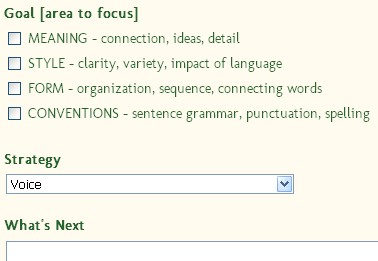
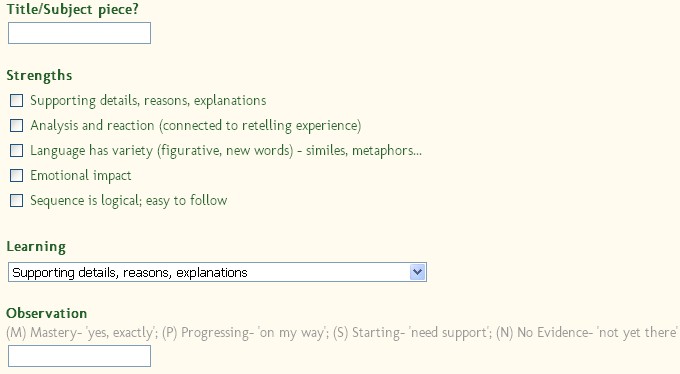
Here is my version of a working form based on our BC  Performance Standards (Informal Writing).
The data populates into a spreadsheet; each column can be sorted so you can group your teaching points.  Note that the Observation column is using ‘standards based grading’ [Mastery, Progressing, Starting, No evidence] rather than a numeric system. (More on this later in another post) Hover your mouse over the Observation column, right click and click Sort.  Data will be grouped by M, P, S, N – an easy way to see new groups of students for mini-lessons.
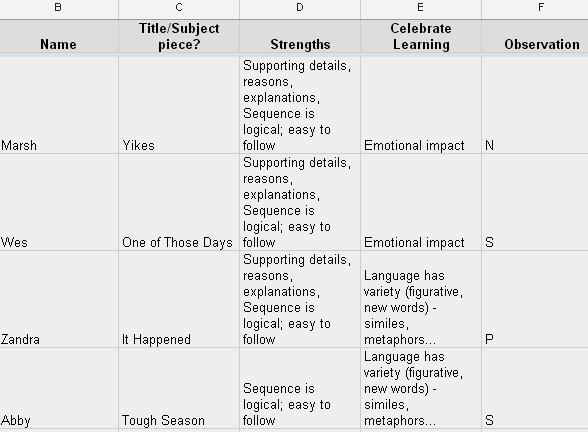
This should be called “informative assessment”!  Imagine how teaching might change with this type of immediate information at your fingertips.  How are you organizing your comments? Would love to hear from you – drop a thought in the comment box.

Leave a Reply Cancel reply

Your email address will not be published. Required fields are marked *

NEW: Burnaby Learning Community Team

Archive Content

  • MyEd Teacher Resources
  • Websites – School & District
  • Blogs – HOW TO
    • Blog as Story
  • IPAD EVERYTHING
    • Apps Supporting Story
    • Top “22” Apps for 2022
    • Profiles on iPads Explained
    • iPad Workflows
  • Creativation -Digital Story with Green Screen
    • Set Up Your Green Screen Kit
    • How to Create a Video Story
    • Story Examples using Green Screen
    • Creativation – Studio Recordings
  • Assessment Series – Katie White
  • Curricula Templates
  • Digital Citizenship
  • Digital Literacy
  • Innovative Teaching & Learning
  • Tools that Make a Difference

Archives

Contact Our Team

Lucky Saini  (District Vice Principal Educational Technology)

Michelle Mactavish  (Education Technology Support Teacher)

©2026 Learning Technologies (Archive) | WordPress Theme by Superbthemes.com