Skip to content
Menu
Learning Technologies (Archive)
  • Home
  • Web Resources
    • Blogs
      • How To – Blogs & Websites
    • Websites – School & District
    • MyEd Teacher Resources
    • O365 Resources
    • TEAMS and 365
    • Fast ForWord Intervention
  • Apps / Software
    • Apps Supporting Story
    • Creativation -Digital Story with Green Screen
      • Set Up Your Green Screen Kit
      • How to Create a Video Story
      • Story Examples using Green Screen
    • IPAD EVERYTHING
      • Top “22” Apps for 2022
      • Apps Supporting Story
      • Green Screen – Curiosity Engaged
        • Set Up Your Green Screen
        • How to Create a Video Story
        • Story Examples using Green Screen
        • Creativation – Studio Recordings
    • All The Right Type – ONLINE
    • Audacity
    • Images & Video
    • Inspiration
    • Kidspiration
  • Curricula
    • ADST
      • All The Right Type – ONLINE
      • 3D Design + Printing
      • Coding
        • BeeBots
        • micro:bits
        • Minecraft for Education
        • Spheros
    • All The Right Type – ONLINE
    • Core Competencies
    • Curricular Templates
    • Communicate Learning via Digital Portfolios
    • Digital Literacy
    • Team O365 & Makerspaces Writing
    • Literacy
      • Literature Circles
      • Performance Standards
      • Words Their Way
      • Writing Workshop
        • Assessment Organization
    • Tech Workflows
    • Visual Literacy
    • Project Stories Unfolded
Learning Technologies (Archive)

SCIT Year 1 – Image Challenge Activity

Posted on October 27, 2010

Homework Challenge Activity for November 18, 2010

Your SCIT challenge will be to take an aspect or program feature  from the Microsoft Office Picture Manager.

This may include ONE of the following topics:

  • How to export files from one format to another
  • How to rename a batch load of pictures
  • How to crop pictures
  • How to compress pictures 

You may show your learning by:

  • posting the process (steps) on the Learning Technologies Blog
  • screen capturing your steps and insert them into MS Word
  • use CamStudio to video record your steps without sound
  • teach a group at the  next learning session using the Brightlink – (very, very  short)

Microsoft Word – Microsoft Office Picture Manager Quick Start Guide


CamStudio
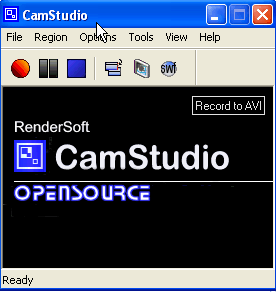
Those of you who feel adventurous,  launch CamStudio from your school computer in the Programs Menu. 

Make sure you do three set up steps:

1) Click on Options, Video Options and select Microsoft Video 1 �
2) Click on Region, select Full Screen�
3) Click on Options, Program Options and select Minimize Program on Start Recording. 

TO RECORD:   CLICK the Red Circle to Record you actions.�
TO STOP:  Click the Blue Square to STOP, Save the file as AVI.  Show next session from your flash drive.

Leave a Reply Cancel reply

Your email address will not be published. Required fields are marked *

NEW: Burnaby Learning Community Team

Archive Content

  • MyEd Teacher Resources
  • Websites – School & District
  • Blogs – HOW TO
    • Blog as Story
  • IPAD EVERYTHING
    • Apps Supporting Story
    • Top “22” Apps for 2022
    • Profiles on iPads Explained
    • iPad Workflows
  • Creativation -Digital Story with Green Screen
    • Set Up Your Green Screen Kit
    • How to Create a Video Story
    • Story Examples using Green Screen
    • Creativation – Studio Recordings
  • Assessment Series – Katie White
  • Curricula Templates
  • Digital Citizenship
  • Digital Literacy
  • Innovative Teaching & Learning
  • Tools that Make a Difference

Archives

Contact Our Team

Lucky Saini  (District Vice Principal Educational Technology)

Michelle Mactavish  (Education Technology Support Teacher)

©2026 Learning Technologies (Archive) | WordPress Theme by Superbthemes.com