Settings are where you will be able to personalize the game experience for yourself or for your students.
Skins
The default skins in MEE are Alex and Steve.
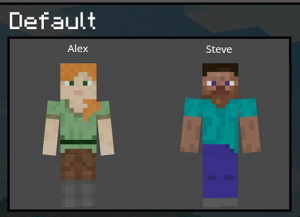
Skins allow you to customize the player and choose an Avatar that most closely matches your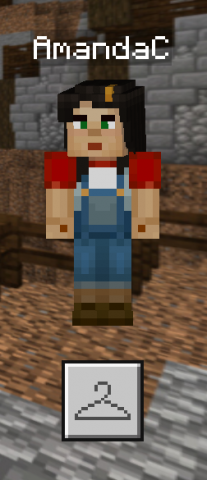 identity or to choose a Skin that fits into the World that you are creating. For example, if students are creating a MC world that depicts the setting of a story, they might want to choose a skin that aligns with that story.
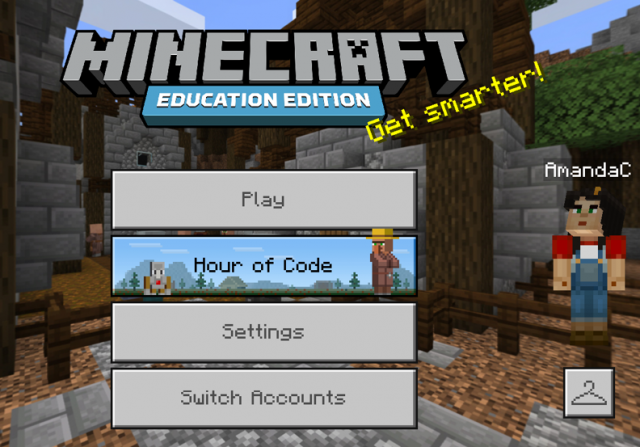
You can personalize by clicking on the little hanger below your character on the home screen.
Students may ask about uploading skins they use in regular Minecraft. While many aspects of MEE are similar to regular Minecraft, note that students need to choose from the skins provided within the game.
Settings
When you log into MEE, you will start at the home screen. You can modify settings from here, or from within the game.
Accessibility
Here you can enable text-to-speech and screen-reader. There are also settings for language if you scroll down in the settings menu.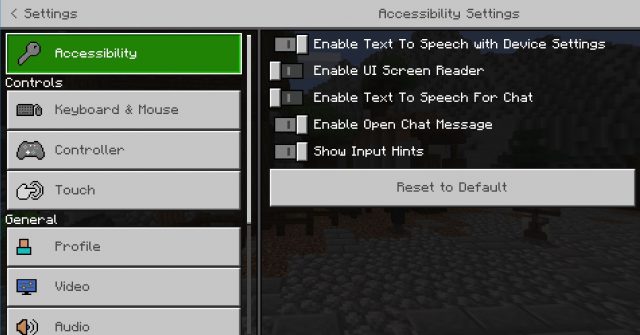
Keyboard and Mouse Hints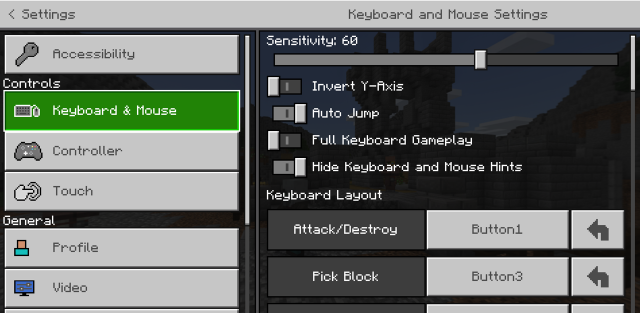
The sensitivity slide can be moved to the left to slow down the speed the player builds. This will help when you learn to place and break. Taking the sensitivity to 15 or below helps you not dig holes.
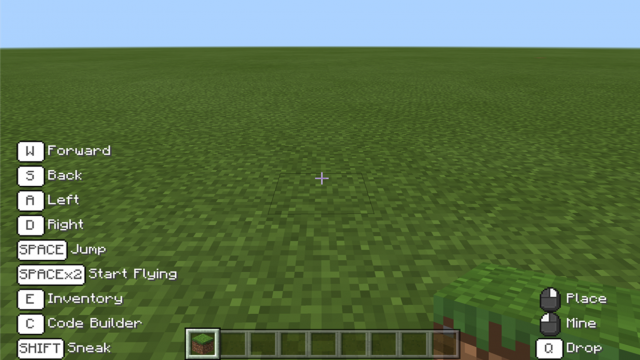
Hide Keyboard and mouse hints – make sure the toggle is on the left to start. If it is on the right, it means it is on and will hide the mouse hints.
Video
Here we can adjust a couple things that might be useful for varying visual needs. There’s the brightness slide at the top.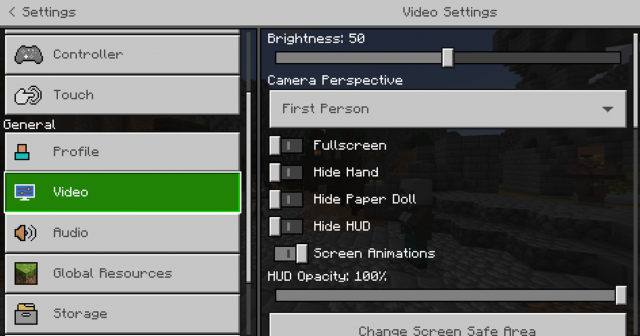
Scroll down to find the “Bobbing” setting. In the game, the avatar bounces as they walk. Turning this off may be helpful for folks who are sensitive to motion. If you are sensitive to motion, toggle “View Bobbing” to the left.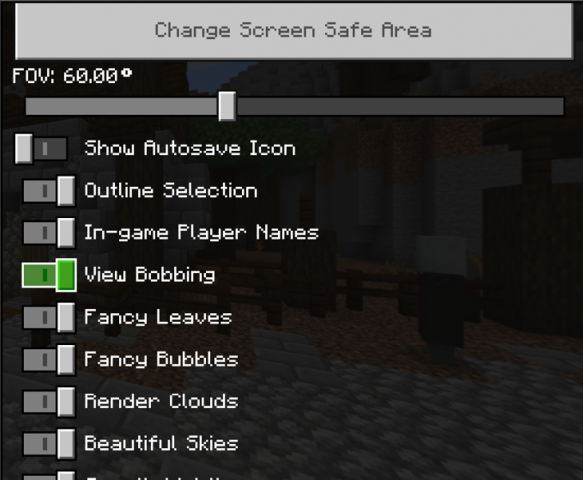
Audio
Select audio to control sound. There is a music control and a sound control. The music will control the background game music and the sound will control the player and animal sounds. Set these how you like.

How to Play
Click here for lots of “how-tos”–including movement, using different tools, etc. You can always access this during game play as well, but pressing ESC > Settings.