- Click here for the first assignment.
Ms Pedersen’s Typing Classes
Click here to log in.
Needle Felting
Ms O’Sullivan: National Indigenous People’s Day
- Click here for a Canadian Government Site that explains key ideas
- Click here to see a video that reviews the meaning of the word Indigenous
- Now everyone go to this YouTube site, click on the Share button underneath the video screen. Copy the link. Paste this link into your SharePoint.
- Click here for a variety of sites and videos
Adding an Equation to Word or Canvas

- Select Insert > Equation or press Alt + =.
- To use a built-in formula, select Design > Equation.
- To create your own, select Insert > Equation > Insert New Equation.
- Use your finger, stylus, or mouse to write your equation.
- Select Insert to bring your equation into the file.
See the ribbon for more Structures and Convert options.
For Canva
- From the editor side panel, click Apps.
- Type Equations (beta) on the search box and press Enter on your keyboard.
- Select the Equations (beta) app.
- Enter your equation on the box and use any of the quick buttons and symbol sets.
- Click the box next to Color to customize your equation’s color. You can use a color picker or manually enter a hex color code.
- Select Insert equation to add your equation to your design.
Stop Motion: Ms Chen’s Class
Click here to see the video we watched in class.
Ms Wilson: Medicinal Local Plants

Ms O’Sullivan Studio Code 2023

Seniors: Click here to access your class’s log in
Juniors: Click here to access your class’s log in
Adding a Bibliography using the AI assistant in Word
Note this works with the Desktop version of Word.
- Put your cursor at the end of the text you want to cite.
- Go to References > Style, and choose a citation style.
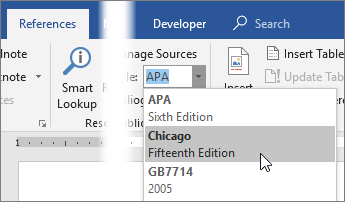
- Select Insert Citation.
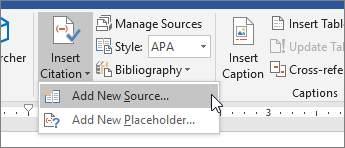
- Choose Add New Source and fill out the information about your source.
Once you’ve added a source to your list, you can cite it again:
- Put your cursor at the end of the text you want to cite.
- Go to References > Insert Citation, and choose the source you are citing.

- To add details, like page numbers if you’re citing a book, select Citation Options, and then Edit Citation.

Create a bibliography
With cited sources in your document, you’re ready to create a bibliography.
- Put your cursor where you want the bibliography.
- Go to References > Bibliography, and choose a format.
Tip: If you cite a new source, add it to the bibliography by clicking anywhere in the bibliography and selecting Update Citations and Bibliography.
Ms Shivji: Charter of Rights & Freedoms
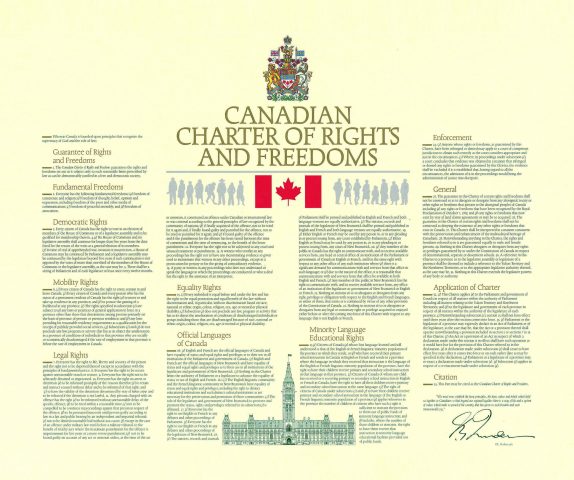
- Click here to read an article about the Canadian Charter of Rights and Freedoms from the Canadian Encyclopedia.
- Click here for a simple rewording of the Charter.
- Click here to see a webpage written by the Canadian government about the Charter.
- Click here to access the template for the brochure.